
Introduction
If you want quizzes to feel less boring and more exciting, becoming a Gimkit Host can help. Gimkit is a learning platform that turns review questions into game-based practice. Teachers can create kits, run live games, and use assignments for homework or extra study. Gimkit’s help center says educators need an account to create kits and host games, while student accounts are optional. It also says Basic members can host games, create classes, and collect reports, so the free version is enough for many teachers to begin.
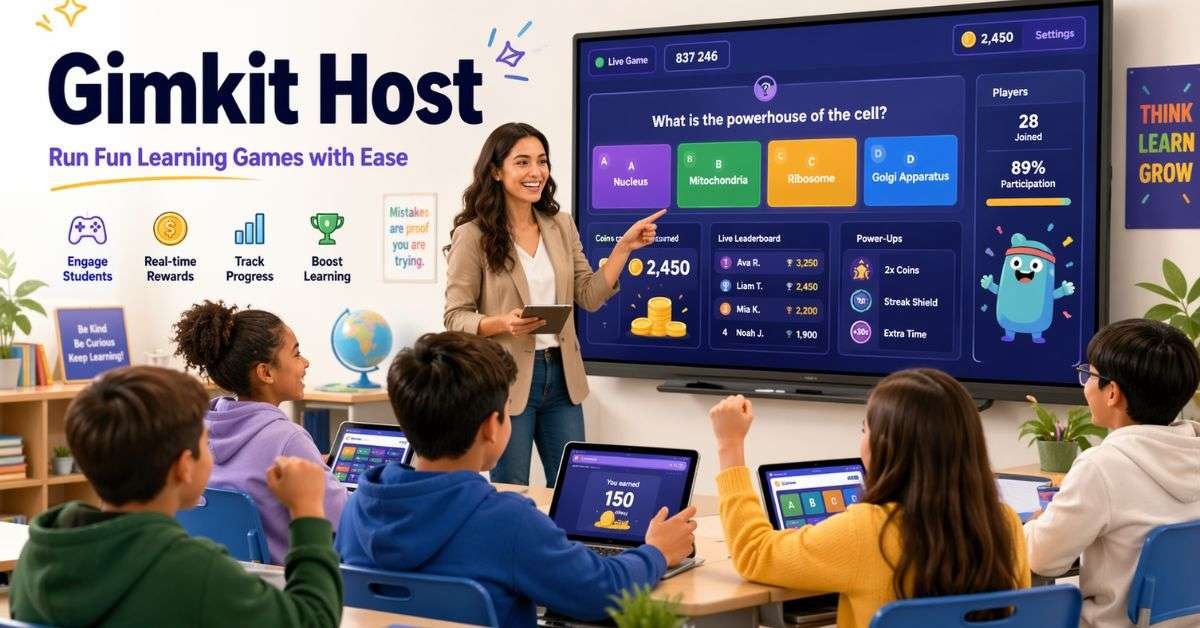
A Gimkit Host runs the game by picking the kit, choosing the mode, sharing the join method, and starting the session. Good hosting also means writing clear questions and checking results after the game. This article explains what a Gimkit Host does, how to create your first game, and how to make your sessions simple, useful, and fun for students.
What is Gimkit?
Gimkit is a classroom game platform built for review and practice. Its official website describes it as a live learning game show that uses knowledge, collaboration, and strategy. That is one reason students often enjoy it more than a normal worksheet or quiz.
Teachers can build kits from scratch or use the Question Bank to pull questions from public kits into their own. That saves time and helps teachers get ideas faster.
What Does a Gimkit Host Do?
A Gimkit Host manages the whole game session from start to finish. Gimkit’s official hosting guide says the live game process is simple: select a kit, select a game mode, set up options, share the game code or join link, and start the game.
In real classrooms, a Gimkit Host also chooses lesson-ready questions, explains the goal, watches the class, and uses reports to see what students missed.
How to Create an Account and Start
To begin, go to Gimkit and create an educator account. Gimkit says account creation is free, and educator accounts are the type needed for building kits and hosting games. New free educator accounts also come with a 14-day Pro trial before continuing on Basic if you do not upgrade.
Once you log in, you can open your dashboard and create your first kit. Gimkit says you can click New Kit, add the name, language, and subject, then continue building the set. You can also choose a cover image and start adding questions right away.
Steps to Start Hosting
| Step | What You Do | Why It Helps |
| 1 | Create an educator account | Needed to make kits and host games |
| 2 | Click New Kit | Starts your question set |
| 3 | Add title, language, and subject | Keeps your kit organized |
| 4 | Write or import questions | Builds the learning content |
| 5 | Choose a mode | Shapes how the game feels |
| 6 | Share code or link | Lets students join |
| 7 | Start game and monitor results | Helps you guide learning |
These steps keep the session smooth and easy to follow.
How to Make a Better Kit
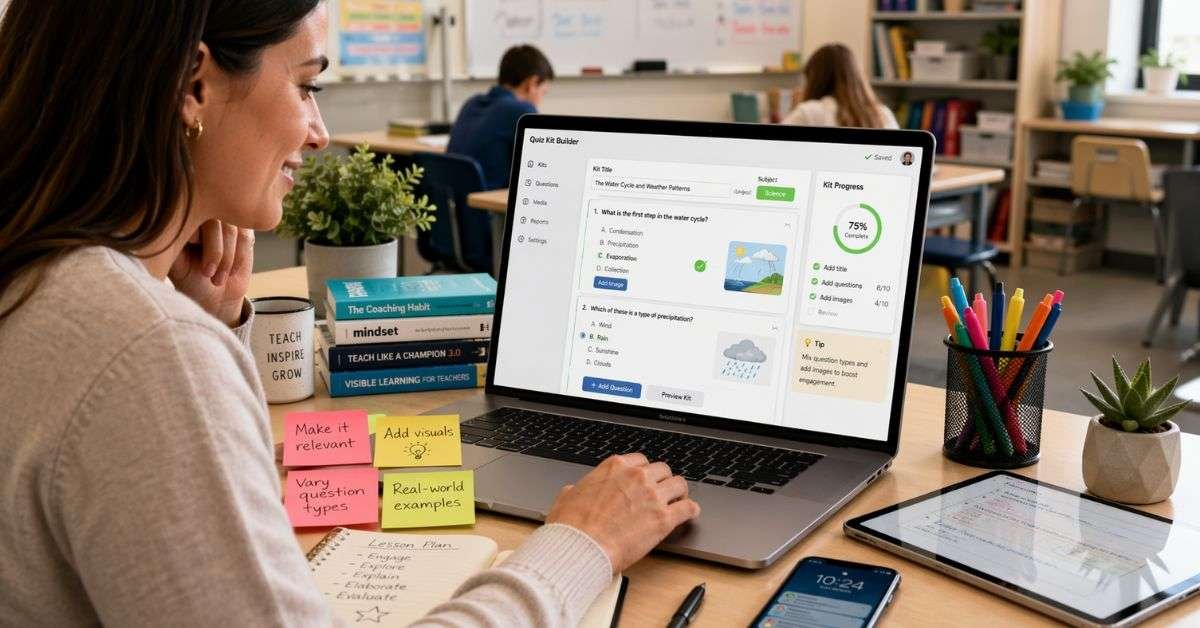
A kit is the heart of the game. If the questions are weak, the game will not help much. Try to keep each question short, direct, and easy to read. This is important if you want the article topic to fit a 7th-grade reading style and if you want students to understand the questions quickly.
Use simple answer choices. You can also use text input questions when you want students to recall an answer instead of picking from choices. Gimkit officially supports text input questions in kits. A strong host focuses on learning goals first.
How to Host a Live Game
After your kit is ready, you can host it live. You can start by clicking the Play Live button on your dashboard or in a kit, according to Gimkit. Then you pick the mode, set your options, and share the join method with students. Before starting, explain the rules in one minute or less. A calm start leads to a better game.
A Gimkit Host should also decide if students will join by code, link, or class. Gimkit says classes help keep names appropriate in live games and support Instant Join, which lets students join without typing the game code each time.
Live Games vs Homework
Gimkit is not only for live classroom play. It can also work as homework or self-paced study. Gimkit’s assignments section says students can play on their own from anywhere, which makes assignments useful for distance learning, independent study, or homework.
Live Game or Assignment?
| Option | Best For | Student Pace | Teacher Role |
| Live Game | Fast class review and energy | Real time | Active during the game |
| Assignment | Homework or quiet practice | Self-paced | Sets it up, then checks progress |
A smart Gimkit Host chooses the format based on the lesson goal. If you want class energy and quick feedback, go live. If you want flexible practice, use an assignment.
Simple Tips for Better Results
A few habits can make your sessions much stronger.
- First, keep your kits focused. Ten to twenty strong questions can work better than a long set with repeated ideas.
- Second, match the mode to the age and goal of the class.
- Third, use reports after the game ends. Gimkit says Basic members can collect game reports, and those reports can show where students need more review. A thoughtful Gimkit Host looks at the learning after the fun.
- Fourth, use classes when possible. Gimkit says classes can keep names clean, track assignment progress, and save progress in some situations. That makes setup easier and gives you a cleaner view of student work.
Common Mistakes to Avoid
Even a fun tool can become messy if the setup is weak. Here are common mistakes:
- Writing questions that are too long
- Starting the game without clear instructions
- Picking a mode that does not fit the lesson
- Using the game only for fun and not for review
- Ignoring reports after students finish
A careful Gimkit Host keeps the game simple, the questions clear, and the lesson goal visible.
Why This Tool Works for Learning
Gimkit works well because it adds energy to review without removing the learning goal. Students answer questions, react quickly, and stay more involved than they often do with paper review. That is why many teachers enjoy using Gimkit. It feels fun for students and useful for teachers.
FAQs
What is a Gimkit Host?
A Gimkit Host is the person who sets up and runs the game.
Do I need an account to host?
Yes. To make kits and host games, teachers need a Gimkit account.
Can I use Gimkit for homework?
Yes. Assignments let students play on their own time.
Can I make my own questions?
Yes. You can create a kit from scratch or use the Question Bank.
Do free accounts work?
Yes. Basic members can host games, create classes, and collect reports.
Conclusion
A Gimkit Host is the teacher or leader who turns a normal review session into an active learning game. With a free educator account, you can build kits, run live games, create classes, and use reports to improve future lessons. You can also assign games for homework when students need extra practice outside class.
The best way to begin is simple. Create one clear kit, choose one lesson goal, and run one short game. Then review the results and improve your next session. Over time, each Gimkit Host can create games that are fun, organized, and helpful for real learning.